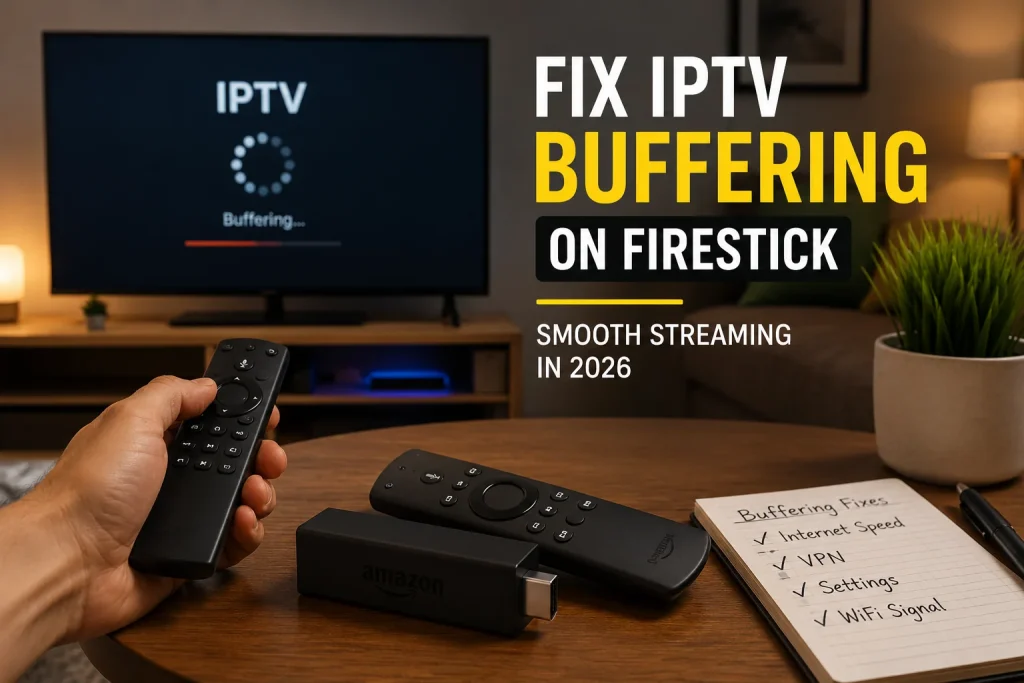
IPTV Smarters may buffer even on fast internet because of overloaded app cache, unstable WiFi connections, device limitations, server congestion, outdated app versions, or incorrect playback settings. Identifying the actual cause is the fastest way to restore smooth streaming and prevent recurring playback interruptions.
Although internet speed affects streaming quality, it is only one part of the equation. IPTV Smarters performance can also be influenced by device resources, network stability, app configuration, and the streaming server itself. Even users with a premium IPTV subscription for USA viewers may experience buffering when these factors create playback bottlenecks.
If IPTV Smarters keeps loading, freezing, or pausing every few minutes, this guide explains the most common causes and the practical fixes that can improve streaming performance.
Common Causes of IPTV Smarters Buffering
Even when internet speeds appear fast enough for streaming, several factors can interrupt IPTV playback. The most common causes include network instability, device limitations, app-related issues, and server-side congestion. Understanding each factor makes it easier to identify the source of buffering and apply the right fix.
Unstable or Fluctuating Internet Connection:
A speed test showing 100 Mbps or more does not automatically guarantee a flawless IPTV experience.
Streaming quality depends on consistency rather than peak speed. A connection that fluctuates frequently can cause more buffering than a slower but stable connection. IPTV streams rely on continuous data delivery, making interruptions more noticeable during live TV and sports broadcasts.
Device Performance Limitations:
Another overlooked factor is the streaming device itself. Firestick, Android TV devices, Smart TVs, and older streaming boxes may struggle when multiple apps run in the background or when storage space becomes limited.
In many cases, users discover that buffering is caused by device optimization issues rather than internet speed alone.
Overloaded IPTV Smarters Cache
IPTV Smarters stores temporary files to improve loading times, but accumulated cache data can sometimes create playback problems instead. When the cache becomes excessively large or corrupted, users may experience buffering, freezing, or delayed channel loading.
This issue is more common on Firestick devices and Android TV boxes that have limited storage space. Clearing the app cache periodically can help restore smoother performance.
Outdated IPTV Smarters App Version
Running an older version of IPTV Smarters can lead to compatibility issues, playback bugs, and reduced streaming performance. App updates often include stability improvements, bug fixes, and optimizations that improve video playback.
If buffering starts after a long period without updating the app, checking for the latest version is a simple troubleshooting step that can eliminate software-related issues.
Server Congestion During Peak Hours
Not every buffering issue originates from the user’s internet connection or device. IPTV servers can become overloaded during peak viewing periods, especially during major sporting events, pay-per-view broadcasts, or prime-time television hours.
When server demand exceeds available resources, streams may pause, buffer, or temporarily lose quality even if local internet speeds remain fast and stable.
Incorrect Video Player Settings
IPTV Smarters offers several playback options, and certain configurations may not work optimally on every device. Hardware decoding, external player settings, and video rendering options can all influence streaming performance.
Incorrect player settings may create unnecessary strain on the device, resulting in buffering or playback interruptions. Adjusting these settings often improves stream stability without requiring changes to internet service.
Most users discover that one of these issues is responsible for the majority of buffering complaints.
IPTV Smarters Buffering Symptoms
Buffering does not always appear in the same way.
Some users experience endless loading circles before channels open. Others notice smooth playback for several minutes followed by sudden freezing. Understanding the symptom often helps identify the cause.
Common signs include:
- Channels taking too long to load
- Live TV freezing every few minutes
- Playback stopping during sports events
- Frequent loading screens between channels
- Delayed audio and video synchronization
- Buffering only during peak evening hours
Each symptom points toward a different area that requires attention.
Simple Fixes That Solve Most IPTV Smarters Problems
Before making advanced changes, start with the fixes that solve buffering for a large percentage of users.
- Restart IPTV Smarters completely.
- Clear the application cache.
- Restart your streaming device.
- Reboot your modem and router.
- Connect to a 5GHz WiFi network.
- Update IPTV Smarters to the latest version.
- Remove unused apps consuming device resources.
- Test playback on another channel.
- Check available storage space.
- Verify playlist and login information.
Many buffering problems disappear after completing these basic troubleshooting steps.
Network Settings That Affect IPTV Smarters Performance
Network quality has a bigger impact than many users realize.
Even with fast internet, packet loss and signal interference can affect IPTV streams. Wireless networks often face interruptions from nearby devices, neighboring WiFi networks, and physical obstacles inside the home.
If possible:
- Use Ethernet instead of WiFi
- Place the router closer to the streaming device
- Avoid downloading large files during streaming
- Restart networking equipment regularly
- Use modern routers that support dual-band connectivity
Stable connections generally outperform faster but inconsistent networks.
When the Problem Is Not Your Internet Connection
Many IPTV users spend hours testing internet speeds when the real issue is elsewhere.
During major sporting events, PPV broadcasts, and high-demand live channels, IPTV servers may experience temporary congestion. In these situations, even excellent home internet connections cannot completely prevent buffering.
Device performance can also play a role. Older Firesticks, outdated Android TV devices, and Smart TVs with limited processing power may struggle with higher-bitrate streams.
If buffering appears only on specific channels while other channels work normally, the issue is often unrelated to your internet connection.
This is why troubleshooting should focus on the complete streaming environment rather than speed tests alone.
Should You Use a VPN With IPTV Smarters?
A VPN is not always necessary, but it can be helpful in certain situations.
Some internet providers manage network traffic during busy periods, which can affect streaming quality. A VPN may improve consistency if throttling is contributing to buffering.
However, VPN performance varies significantly.
A slow VPN server can introduce additional delays and make buffering worse. If you decide to use one, select a provider with fast servers, low latency, and reliable streaming performance.
Testing IPTV Smarters with and without a VPN can help determine whether it improves playback on your network.
How Often Should You Clear IPTV Smarters Cache?
Many users never clear app cache until problems appear.
Temporary files accumulate over time and can affect performance, especially on devices with limited storage.
As a general rule:
- Weekly for heavy users
- Every two weeks for moderate users
- Monthly for occasional users
Regular maintenance helps keep IPTV Smarters running efficiently and reduces the likelihood of unexpected playback issues.
Final Thoughts
When IPTV Smarters buffers despite having fast internet, the problem is usually more complex than bandwidth alone. Device performance, network consistency, application settings, and server conditions all contribute to streaming quality.
The most effective approach is to diagnose the issue step by step rather than assuming internet speed is the only factor. By optimizing your device, maintaining the app properly, and improving network stability, most IPTV Smarters buffering problems can be resolved without major changes to your setup.
If buffering continues on IPTV Smarters after trying the fixes above, reviewing step-by-step fixes for IPTV buffering on Firestick devices can help determine whether the issue is related to the streaming device itself rather than the IPTV app.
A smooth IPTV experience is typically the result of several small optimizations working together rather than a single quick fix.
IPTV Smarters Buffering FAQs
Why does IPTV Smarters buffer while Netflix works fine?
Netflix uses a different content delivery system and automatically adjusts video quality. IPTV streams rely on different infrastructure and may be affected by server load, network stability, or playlist-related issues.
Does faster internet always stop IPTV Smarters buffering?
No. Stability, latency, device performance, and server quality are often more important than raw download speed.
Can low device storage cause buffering?
Yes. Devices with limited available storage may struggle to manage temporary streaming data efficiently.
Is IPTV Smarters buffering caused by the app itself?
Sometimes. Outdated versions, excessive cache files, and configuration issues can affect playback performance.