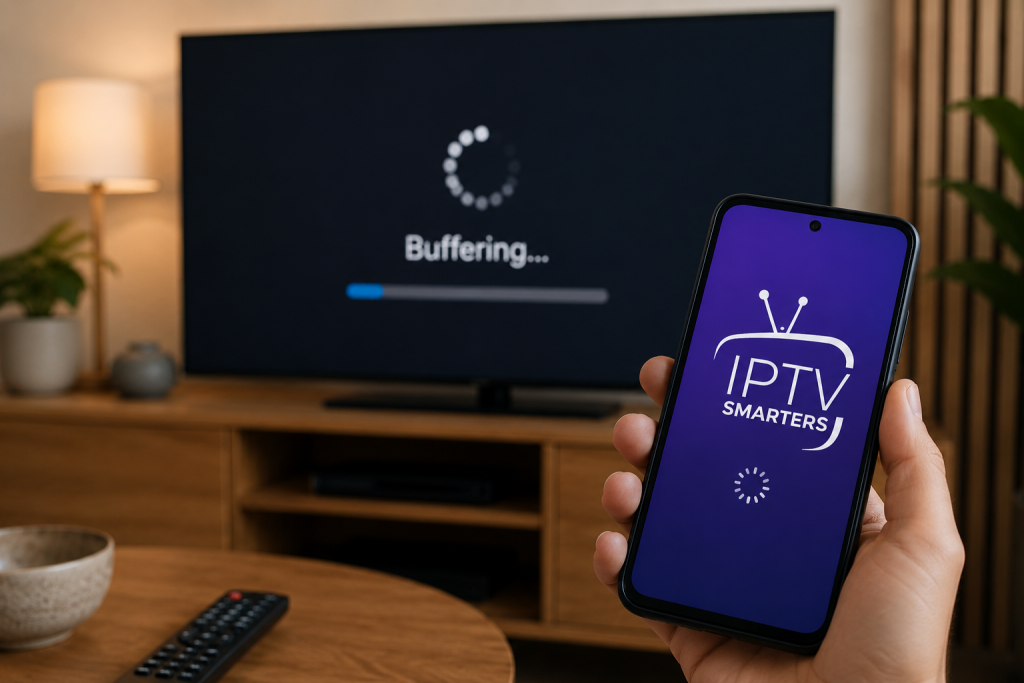
IPTV buffering on Firestick usually happens because of slow internet speeds, overloaded IPTV servers, weak WiFi signals, incorrect Firestick settings, or streaming app cache issues. In most cases, reducing video quality, improving internet stability, clearing cache, and optimizing Firestick settings can significantly improve streaming performance.
Many USA users experience IPTV freezing during live sports, HD channels, or peak evening hours. The good news is that most buffering issues can be fixed without replacing your Firestick or changing your IPTV setup completely. This guide explains the exact causes of IPTV buffering and the best ways to improve streaming quality on Firestick devices in 2026.
If you are using one of the best IPTV services for USA streaming, proper device optimization still matters because even premium IPTV streams can lag when Firestick settings or internet conditions are not configured correctly.
Why IPTV Buffers on Firestick
Firestick buffering happens when your streaming device cannot download video data fast enough to maintain smooth playback. IPTV streaming depends heavily on internet stability, app optimization, and server response time.
Here are the most common reasons IPTV buffers on Firestick:
| Problem | Likely Cause | Recommended Fix |
|---|---|---|
| Constant buffering | Slow internet speed | Upgrade internet or use Ethernet |
| Buffering during live sports | IPTV server congestion | Lower stream quality temporarily |
| IPTV freezes every few minutes | Weak WiFi signal | Move router closer or use 5GHz WiFi |
| HD channels keep loading | Limited Firestick memory | Clear cache and close background apps |
| IPTV works during daytime only | Peak-hour traffic | Use VPN or adjust streaming quality |
| App crashes during playback | Outdated IPTV app | Update IPTV application |
Understanding the real cause of IPTV buffering helps avoid wasting time on random fixes that do not solve the issue.
Check Your Internet Speed First
Before changing Firestick settings, test your internet speed. IPTV streaming quality depends heavily on stable download speeds.
Recommended internet speed for IPTV streaming:
| Streaming Quality | Recommended Speed |
|---|---|
| SD Streaming | 10 Mbps |
| HD Streaming | 20 Mbps |
| Full HD Streaming | 30 Mbps |
| 4K IPTV Streaming | 50 Mbps or higher |
If multiple devices are connected to your WiFi network, IPTV performance can decrease during busy hours.
For the best results:
- Restart your modem and router
- Disconnect unused devices from WiFi
- Use 5GHz WiFi instead of 2.4GHz
- Avoid streaming during heavy downloads
A stable connection is more important than extremely high internet speed.
Restart Your Firestick Properly
One of the easiest ways to fix IPTV buffering is restarting your Firestick.
Temporary memory overload and background apps can slow down streaming performance over time.
To restart Firestick:
- Go to Settings
- Open My Fire TV
- Select Restart
- Wait for the device to reboot completely
Avoid unplugging the device directly while apps are running.
Restarting clears temporary memory usage and can improve IPTV playback immediately.
Before troubleshooting buffering issues, it’s worth reviewing a complete IPTV setup guide for Firestick to make sure your streaming device is configured correctly
Clear Cache on IPTV Apps
Cache buildup is one of the biggest reasons IPTV apps become slow on Firestick.
Apps like IPTV Smarters, TiviMate, XCIPTV, and Kodi store temporary files that can eventually affect streaming performance.
To clear IPTV app cache:
- Open Settings on Firestick
- Select Applications
- Open Manage Installed Applications
- Choose your IPTV app
- Select Clear Cache
Do not select Clear Data unless necessary because it may remove login details and playlists.
Clearing cache regularly can help reduce freezing and loading issues.
Use 5GHz WiFi Instead of 2.4GHz
Many IPTV buffering problems are caused by weak WiFi performance.
The 2.4GHz network band has longer range but slower speed and more interference from nearby devices. The 5GHz band usually delivers faster and more stable IPTV streaming.
If your router supports dual-band WiFi:
- Connect Firestick to the 5GHz network
- Place the router closer to your streaming device
- Avoid walls or large furniture blocking the signal
Using 5GHz WiFi can noticeably improve live IPTV streaming quality.
Reduce Video Quality During Peak Hours
Live sports events and prime-time streaming hours often increase IPTV server traffic.
When servers become overloaded, high-quality streams may buffer more frequently.
Lowering stream quality from 4K or Full HD to HD can help stabilize playback.
This is especially useful during:
- UFC PPV events
- NFL live games
- NBA playoffs
- Major soccer matches
A slightly lower resolution with smooth playback is usually better than constant buffering.
Keep Firestick Storage Free
Low internal storage can reduce Firestick performance and affect IPTV playback.
Streaming apps require temporary storage space for smooth buffering and playback.
To improve performance:
- Delete unused apps
- Remove old downloads
- Clear app cache regularly
- Avoid installing unnecessary streaming applications
Keeping at least 1GB of free storage can help Firestick run more efficiently.
Update Your IPTV App
Outdated IPTV apps can cause playback errors, freezing, and buffering problems.
Developers frequently release updates that improve:
- video decoding
- streaming optimization
- compatibility
- bug fixes
- memory usage
Popular IPTV apps like TiviMate and IPTV Smarters often improve buffering performance after updates.
Always install apps from trusted sources and keep them updated.
Use Ethernet for Stable IPTV Streaming
WiFi convenience is useful, but Ethernet connections usually provide more stable IPTV streaming.
If buffering continues even with fast internet, consider using:
- Firestick Ethernet adapter
- USB OTG cable with Ethernet support
Wired internet connections reduce:
- packet loss
- WiFi interference
- latency spikes
- unstable signal problems
This is especially helpful for 4K IPTV streaming and live sports viewing.
Try a VPN if ISP Throttling Happens
Some internet providers may slow down streaming traffic during peak usage periods.
This is commonly called ISP throttling.
Using a VPN can sometimes improve IPTV performance by encrypting traffic and preventing bandwidth shaping.
A VPN may help when:
- IPTV buffers only during evenings
- internet speed looks normal elsewhere
- sports streams constantly freeze
- streaming quality drops unexpectedly
Choose a VPN with:
- fast servers
- USA server locations
- low latency
- Firestick compatibility
However, avoid low-quality VPN services because they can sometimes increase buffering instead of reducing it.
Adjust IPTV App Buffer Settings
Some IPTV apps allow manual buffer size adjustments.
Apps like TiviMate and Kodi include advanced playback settings that can improve stream stability.
Increasing buffer size may help:
- reduce sudden freezing
- improve playback consistency
- stabilize weaker internet connections
Do not set extremely high buffer values because it may increase channel loading time.
Update Firestick Software
Older Firestick software versions can create compatibility and streaming issues.
To update Firestick:
- Open Settings
- Select My Fire TV
- Choose About
- Select Check for Updates
Installing the latest updates helps improve:
- system stability
- app compatibility
- streaming performance
- memory optimization
Best Firestick Settings for IPTV Streaming
These settings can improve IPTV playback performance:
| Setting | Recommended Option |
|---|---|
| WiFi Band | 5GHz |
| Video Quality | HD during peak hours |
| Background Apps | Close unused apps |
| VPN | Fast low-latency server |
| Storage Space | Keep at least 1GB free |
| IPTV App Cache | Clear weekly |
Firestick IPTV Buffering FAQs
Why does IPTV buffer only on Firestick?
Firestick devices have limited memory and processing power compared to high-end streaming devices. Weak WiFi signals, overloaded apps, and storage limitations can increase IPTV buffering.
What internet speed is best for IPTV on Firestick?
For smooth HD streaming, at least 20 Mbps is recommended. For 4K IPTV streaming, 50 Mbps or higher is ideal.
Does VPN reduce IPTV buffering?
A VPN can help if ISP throttling is causing slow streaming speeds. However, low-quality VPN services may increase buffering.
Is Ethernet better than WiFi for IPTV?
Yes. Ethernet connections are generally more stable and reduce buffering caused by wireless interference.
Final Thoughts
Most IPTV buffering problems on Firestick can be fixed by improving internet stability, clearing app cache, optimizing Firestick settings, and reducing network congestion. In many cases, buffering is caused by multiple small issues working together rather than one major problem.
For smoother streaming in 2026, focus on maintaining stable internet speeds, updating IPTV apps regularly, and optimizing your Firestick for streaming performance. If buffering continues during live TV or sports events, using a properly optimized IPTV setup with reliable streaming settings can significantly improve viewing quality.
Users looking for stable streaming performance, better playback quality, and optimized live TV viewing can also explore IPTV plans and pricing options designed for high-quality USA streaming experiences.